Short answer: Your emails are most likely landing in spam because your domain is missing SPF, DKIM, and DMARC records, or they are configured incorrectly. Gmail, Yahoo, and Outlook no longer trust emails that can't be authenticated. All three records are mandatory if you send more than 5,000 emails a day, and everyone else needs at least SPF or DKIM. In this guide, we walk you through every step, from setting up business email to adding your DNS records.
You sent a quote and got no reply. You sent an invoice, and the customer said, "I never received it." The contact form on your website works, but the notifications never reach you. These scenarios often have the same thing in common: your emails are landing in the recipient's spam (junk) folder, and no one notices.
Why Do Gmail and Outlook Send Your Emails to Spam?
Email is a system that dates back to the 1970s and was designed without identity verification. Anyone can type any address into the "From" field. Scammers exploit this to send fake emails in the name of banks, shipping companies, and even you.
The major email providers have taken a united stance against this:
- February 2024: Gmail and Yahoo made their sender requirements mandatory. All senders must authenticate with at least SPF or DKIM; those sending 5,000+ emails per day must set up all three of SPF, DKIM, and DMARC, offer one-click unsubscribe, and keep their spam complaint rate below 0.3%.
- May 5, 2025: Microsoft began applying the same rules to Outlook.com, Hotmail, and Live addresses, and started rejecting bulk emails that don't comply.
The result: an email that can't prove its identity either goes to the spam folder or isn't delivered at all. For a small business, that means lost quotes and unanswered customers.
Why is doing business with a Gmail address a problem?
Doing business with "isletmem@gmail.com" is technically possible, but it has three drawbacks:
- Trust: Recipients trust a quote that comes from "info@yourbusiness.com" more than one that comes from a Gmail address.
- Control: You manage the DNS records of your business domain, while the reputation of a Gmail address is entirely in Google's hands.
- Bulk sending: Using free addresses like Gmail or Outlook as the "sender" in campaign or newsletter tools increases the risk of non-delivery because of those providers' own DMARC policies.
How Do You Set Up Business Email?
Business email is an email account that works with your own domain name (name@yourcompany.com.tr). To set it up, you need two things: a domain name and an email provider. If you haven't connected your domain to your website yet, check out our domain connection guide first.
Let's compare the options
| Option | Best for | Pros | Cons |
|---|---|---|---|
| Google Workspace | Teams used to the Gmail interface, or those using Drive/Meet | High deliverability, strong spam filter, mobile app | Monthly per-user fee, priced in foreign currency |
| Microsoft 365 | Companies that rely heavily on Word/Excel/Teams | Integrated with the Office suite, enterprise-grade security | More complex setup and admin panel |
| Your hosting company's email | Businesses with tight budgets and few users | Usually included in the hosting plan, no extra cost | Deliverability issues may occur due to shared server IPs, low quotas |
| Zoho Mail and similar | Small teams looking for affordable pricing | Free or low-cost plans | Turkish-language support and integrations may be limited |
Because current prices change often and most are priced in foreign currency, check the provider's own pricing page before you decide.
Setup in 5 steps
- Choose a provider and sign up with your domain name.
- Verify domain ownership: The provider gives you a TXT record, which you add to your domain's DNS panel.
- Change your MX records: An MX record tells the internet which server emails sent to your domain should be delivered to. Enter the MX values your provider gives you and delete the old MX records.
- Set up SPF, DKIM, and DMARC (detailed in the next section).
- Create your users: Create addresses like info@, sales@, and first.last@, and set them up on phones and computers.
Note: To avoid losing emails for a few hours during the MX change, make the switch outside business hours and back up important emails from your old accounts beforehand.
What Are SPF, DKIM, and DMARC? A Plain-English Explanation
Think of these three records as a shipping analogy:
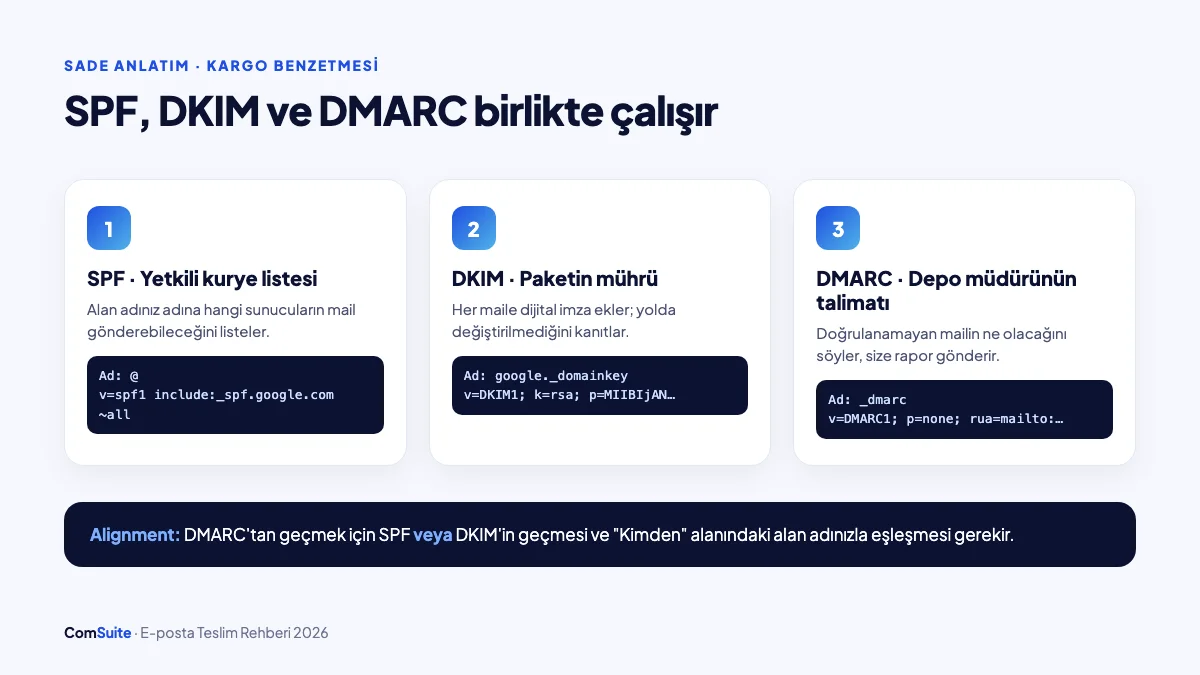
| Record | Analogy | What it does |
|---|---|---|
| SPF | List of authorized couriers | Lists which servers are allowed to send email on behalf of your domain |
| DKIM | The seal on the package | Adds a digital signature to every email, proving it wasn't altered in transit |
| DMARC | The warehouse manager's instruction | Tells receiving servers what to do with email that fails SPF/DKIM, and sends you reports |
The three work together. To pass DMARC, an email must pass SPF or DKIM, and that check must align with the domain in the "From" field. This is the most commonly overlooked point: SPF passes, but because it passes for a different domain, DMARC still fails.
1. The SPF record
SPF is a single-line TXT record added to your domain's DNS. Example (a company that uses Google Workspace and also sends form emails from its website):
Tür: TXT
Ad: @
Değer: v=spf1 include:_spf.google.com include:spf.ornek-saglayici.com ~all
The 4 most common SPF mistakes:
- Adding two separate SPF records. A domain can have only one SPF record. When you add a new service, don't create a new record; add an
include:to the existing line. - Exceeding the 10 DNS lookup limit. Each
includecounts as one lookup; add too many services and SPF returns a "permerror" and becomes completely invalid. - Forgetting a service you use. CRM, newsletter tool, e-invoice system, website form... Every system that sends email on your behalf must be in your SPF record.
- Ending the record the wrong way.
~all(soft fail) is safe to start with; if you're sure you've covered every sending service, you can use-all(hard fail).+allallows everyone, so never use it.
2. The DKIM record
You don't generate the DKIM key yourself; you create it in your email provider's dashboard (in Google Workspace: Admin Console > Gmail > Authenticate email). The provider gives you a name (selector) and a long value:
Tür: TXT
Ad: google._domainkey
Değer: v=DKIM1; k=rsa; p=MIIBIjANBgkqh...(uzun anahtar)
After adding the record, don't forget to click "Start authentication" in the provider's dashboard; many people add the record and skip this step. Choose a 2048-bit key length; keys shorter than 1024 bits are rejected by Gmail.
Every service that sends email (newsletter tool, CRM, etc.) requires its own DKIM record; each one is added with a separate selector and they don't interfere with one another.
3. The DMARC record
Add DMARC after SPF and DKIM are working. Roll it out in stages:
Tür: TXT
Ad: _dmarc
Değer: v=DMARC1; p=none; rua=mailto:dmarc@firmaniz.com.tr
| Stage | Policy | Meaning | When? |
|---|---|---|---|
| 1 | p=none | Monitor and report only; don't block any email | First 2–4 weeks |
| 2 | p=quarantine | Send unauthenticated email to spam | Once all legitimate senders show clean in the reports |
| 3 | p=reject | Reject unauthenticated email outright | After a few weeks without problems |
The daily reports sent to your rua address show who is sending email on behalf of your domain. These reports help you catch a service you forgot about (for example, the e-invoice system your accountant uses). Starting directly with p=reject is the fastest way to block your own legitimate emails.
Bonus: Moving DMARC to p=quarantine or p=reject also largely prevents scammers from impersonating your domain to send fake invoices to your customers.
Your Records Are Correct but Emails Still Land in Spam: 7 Other Reasons
SPF, DKIM, and DMARC are your ticket in; once you're inside, your behavior is scored too.
- New domain, zero reputation. Sending hundreds of emails from a brand-new domain on day one looks suspicious. Increase your sending volume gradually over the first few weeks ("warming up").
- Shared server IP. With cheap hosting email, if another site using the same IP sends spam, you suffer too. Check whether your IP is on a blacklist.
- Website forms misuse the "From" field. Many form plugins use the visitor's address (e.g., ali@gmail.com) as the sender. Because this email leaves your server while claiming to be from Gmail, it fails DMARC. The right way: you are the sender (form@firmaniz.com.tr), and the visitor goes in the "Reply-To" field.
- Content that triggers spam filters. All-caps subject lines, "FREE!!!", emails made of a single large image, shortened links, and mismatched link text all trigger filters.
- No unsubscribe option. One-click unsubscribe is now mandatory for bulk sending. Recipients who can't find a way out hit the "spam" button, which damages your reputation.
- Old lists and no permission. Lists that haven't been updated in years contain closed addresses (hard bounces) and spam trap addresses. In addition, sending commercial electronic messages in Turkey requires the recipient's consent and an İYS (Message Management System) record; sending without permission carries both legal and technical risk. For the personal data side, see our website guide to Turkey's data protection law (KVKK).
- Missing reverse DNS (PTR) and TLS. If you run your own mail server, your IP address's reverse DNS record and encrypted connection (TLS) must be set up correctly. If you use Google Workspace or Microsoft 365, the provider manages these for you.
Quick checklist
- ☐ The domain has a single SPF record that includes all sending services
- ☐ DKIM is active for every sending service
- ☐ A DMARC record exists (at least p=none) and reports are being monitored
- ☐ Website forms send from your own domain, with the visitor in Reply-To
- ☐ Bulk emails include one-click unsubscribe
- ☐ Recipient consent and İYS registration are in place for commercial messages
- ☐ The server IP is not on any blacklists
Test Your Setup in 2 Minutes
After adding the records (DNS changes can take anywhere from a few minutes to a few hours to propagate), run this check:
- Send an email from your business address to a personal Gmail account.
- Open the email in Gmail, click the three dots in the top right, and select "Show original".
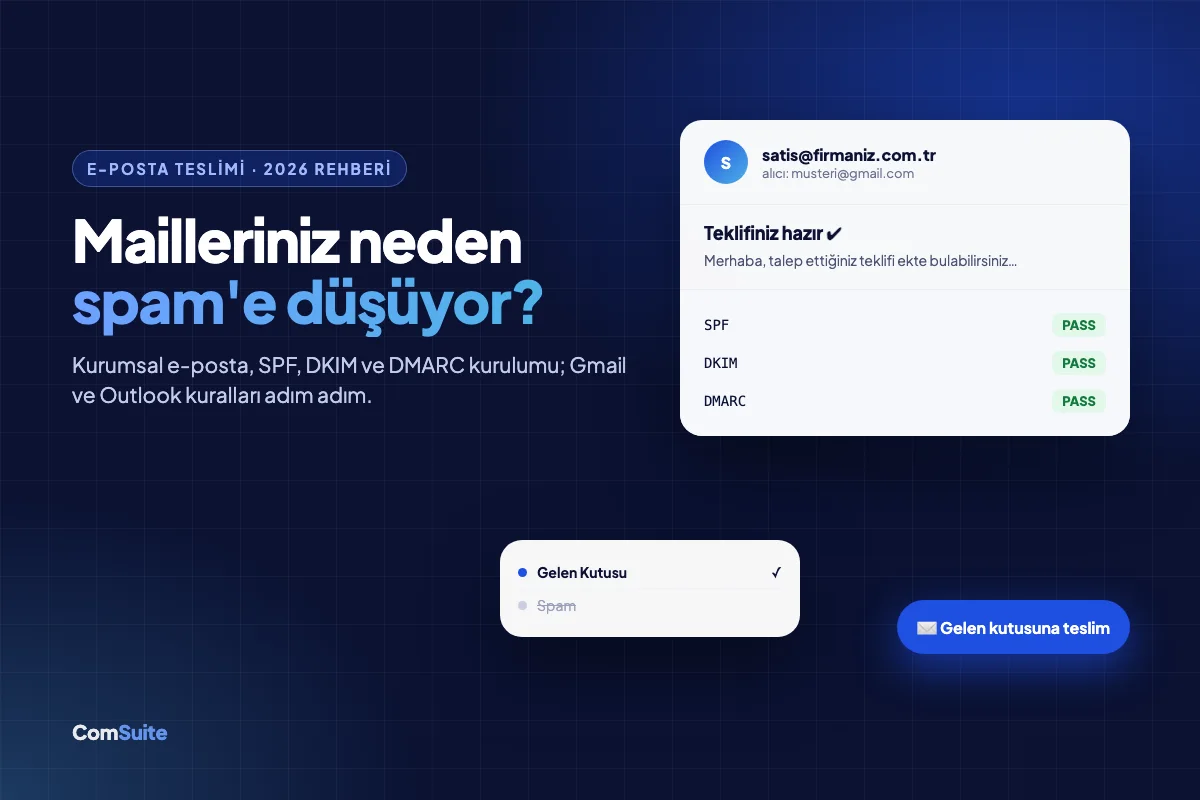
- On the page that opens, look for the SPF: PASS, DKIM: PASS, and DMARC: PASS lines. If all three say PASS, your basic setup is complete.
- If you send bulk email, add your domain to Google Postmaster Tools and regularly monitor your spam complaint rate and domain reputation.
Any line that shows FAIL tells you exactly which record is missing or incorrect.
Frequently Asked Questions
Can I set up a business email for free?
Some hosting plans and the free tiers of providers like Zoho offer business email. However, free options usually come with limits on storage, number of users, and deliverability. For critical correspondence such as quotes and invoices, a paid provider is the safer choice.
Are SPF, DKIM, and DMARC all mandatory?
If you send more than 5,000 emails per day to Gmail, Yahoo, or Outlook addresses, all three are mandatory. If you send fewer, at least SPF or DKIM is required; still, we recommend setting up all three for better deliverability and protection against spoofing.
How long until DNS records take effect?
Usually anywhere from a few minutes to a few hours; in rare cases it can take up to 48 hours.
Why aren't emails from my website's contact form reaching me?
The most common cause is that the form uses the visitor's email address in the "From" field. Configure the form to send from your own domain, put the visitor's address in the "Reply-To" field, and add your site's sending service to your SPF record.
My emails land in the "Promotions" tab. Does that mean they're spam?
No. The Promotions tab is part of Gmail's content categorization and isn't spam. It's normal for newsletters to land there, while quotes and informational emails written in a personal tone usually go to the Inbox.
Can I set DMARC straight to p=reject?
You can, but we don't recommend it. Start with p=none and monitor the reports for a few weeks. Once you've identified every legitimate service that sends email on your behalf and added them to SPF/DKIM, tighten the policy gradually.
Your Website, Forms, and Emails Under One Roof
A website built with ComSuite comes with your own domain and automatic SSL. To track customer inquiries in one place, you can use the CRM module, so requests don't depend solely on your email inbox. You can also send your review request emails safely with this setup; see our Google reviews guide for details.
Curious about your site's technical health? Check it with the free Website Health Tool or contact our team.
Sources
- Summary of Gmail, Yahoo, and Outlook sender rules (Courier)
- Gmail and Yahoo DMARC requirements; Microsoft's May 5, 2025 enforcement (dmarcian)
- Outlook's new rules for high-volume senders (Microsoft Tech Community)
- Bulk sender requirements: SPF, DKIM, DMARC (Higher Logic)